Your Mac keyboard, finally on Windows.
Stop retraining your thumb. Macifier puts Command back where it belongs — the key next to the spacebar — so copy, paste, app switching and word jumps work the way they always have. One tray app, 60-second setup.
Want to try first? Download Macifier and use Free mode →
Press a Mac shortcut — watch it land
See it in action
Same fingers, same keys, same results — on a Windows machine. No scripts, no setup.
14-day money-back guarantee · Pay by card, no PayPal account needed
The same shortcuts, the same place
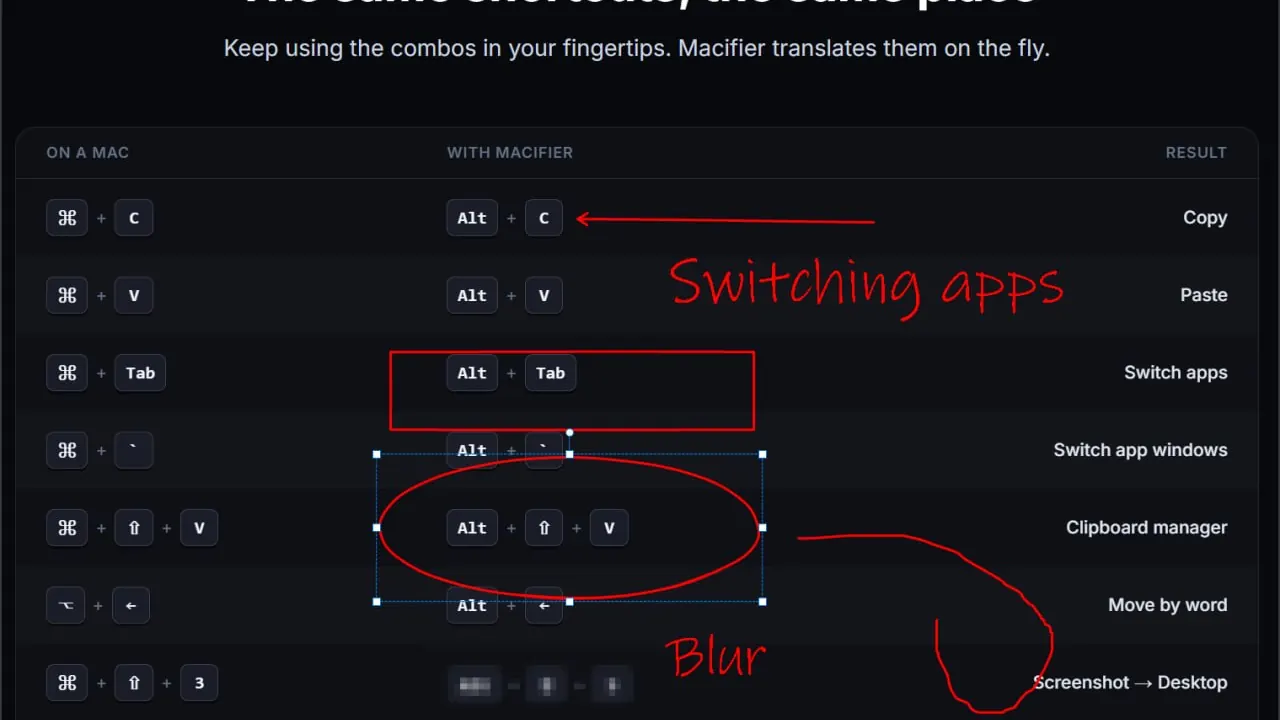
There is nothing new to learn. On a PC keyboard, the key next to the spacebar is labelled Alt instead of ⌘ — Macifier makes it behave like ⌘, so your thumb lands where it always did.
New to Windows? Step-by-step guides for using Cmd+C and Cmd+V on Windows, swapping Cmd and Ctrl, and taking Mac-style screenshots.
Everything that makes a PC feel like a Mac
Macifier ports the keyboard habits you can't unlearn — without fighting Windows.
Swap ⌘ and Ctrl
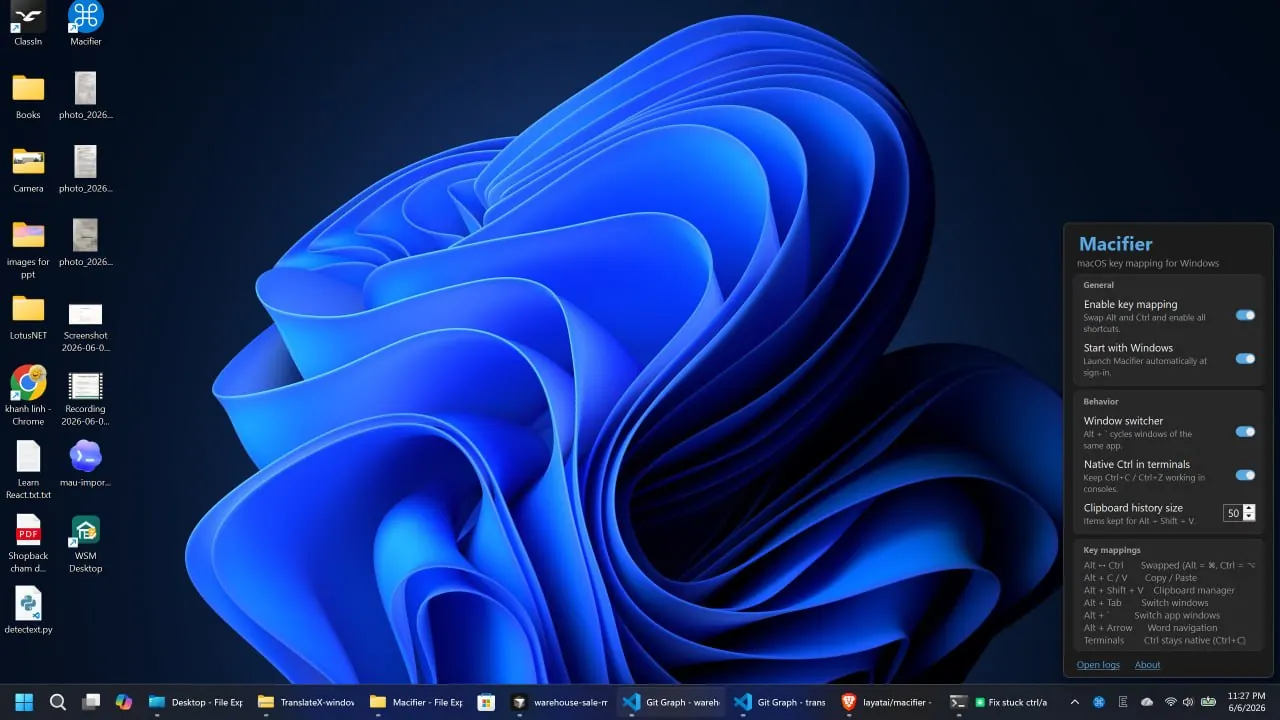
Alt becomes Command and Ctrl becomes Option, so copy, paste, and select-all land exactly where your fingers expect.
Clipboard manager
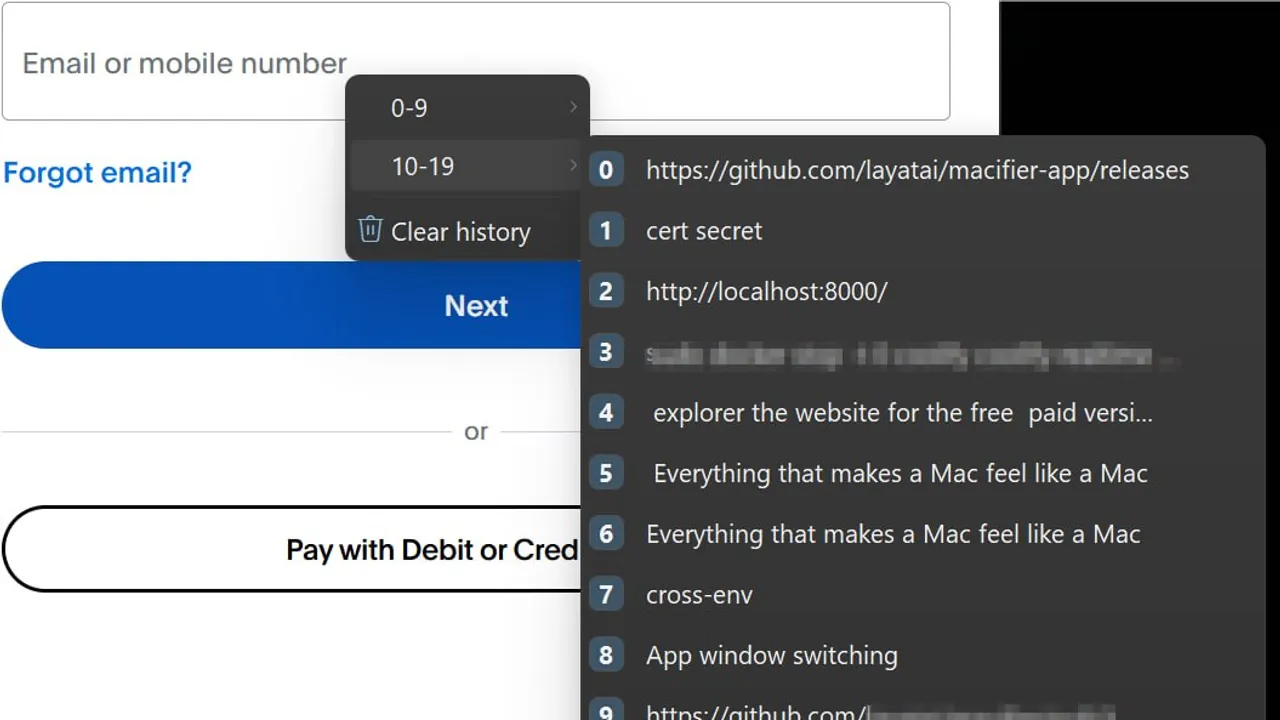
Press Alt + Shift + V for a searchable history of everything you've copied — text, rich text, and more.
App window switching
Alt + ` cycles between windows of the same app, just like macOS. Alt + Tab still switches between apps.
Word navigation
Alt + Arrow jumps word-by-word and line-to-line, matching macOS text editing across every app.
Mac-style screenshots
Alt + Shift + 3 grabs the whole screen and Alt + Shift + 4 a selection — both saved straight to your Desktop. Alt + Shift + 5 opens the Snipping Tool.
Terminal-aware
In cmd, PowerShell, and Windows Terminal, Ctrl stays native — so Ctrl+C still interrupts instead of copying.
UniSpace Windows receiver
Control this PC from your Mac keyboard and mouse over LAN or Tailscale. Free mode gives renewable one-hour sessions; Pro removes the cap.
Native & lightweight
One tiny tray app. No AutoHotkey scripts, no registry hacks. Follows your Windows light/dark theme.
Everything that makes a PC feel like a Mac
Macifier ports the keyboard habits you can't unlearn — without fighting Windows.
Swap ⌘ and Ctrl
Alt becomes Command and Ctrl becomes Option, so copy, paste, and select-all land exactly where your fingers expect.
Why not just AutoHotkey?
You can stitch this together with SharpKeys and AutoHotkey scripts. Or you can install one app and be done in a minute.
Already on PowerToys Keyboard Manager? It's a solid remapper for one-off key swaps. Macifier is the Mac-shaped pack — ⌘-style shortcuts, clipboard history, Mac-style screenshots, and terminal-aware Ctrl — in one tray app, so you don't have to assemble that workflow yourself.
See the full breakdown of Macifier vs. AutoHotkey, Karabiner, PowerToys, and SharpKeys on our alternatives page.
Pay once. Keep it forever.
Less than one lunch, against a keyboard you fight every working day. No accounts, no monthly fees.
Save $10 — launch pricing, goes to $29 soon.
Pay with any debit or credit card — no PayPal account needed.
- ✓Unlimited UniSpace — no more one-hour session caps
- ✓Every mapping, the clipboard manager, screenshots — the lot
- ✓Watermark-free screenshots you can actually send to a client
- ✓Unlimited clipboard history, not just the last few items
- ✓Automatic updates, forever, at no extra cost
- ✓Priority email support from the person who built it
- ✓Use it on every PC you own — laptop, desktop, work machine
Try it risk-free. If Macifier doesn't make Windows feel like your Mac, email us within 14 days for a full refund — no questions asked.
What's the difference between Free mode and $19 Pro?+
Free mode: full Mac keyboard mappings, markup editor, and UniSpace with renewable one-hour sessions (re-enable anytime). Pro: unlimited UniSpace with no session cap, plus watermark-free screenshots, unlimited clipboard history, automatic updates, and priority support.
Frequently asked questions
Which versions of Windows are supported?+
Windows 10 and Windows 11 (64-bit). Macifier ships as a self-contained app, so you don't need to install anything else — just run it.
Is it safe? Does it log my keystrokes?+
Macifier runs entirely on your own PC. It remaps keys locally through a standard Windows keyboard hook — the same mechanism remappers like PowerToys use — and there's no account to create. Your typing stays on your machine.
Will Ctrl+C still work in the terminal?+
Yes. Macifier detects terminals (cmd, PowerShell, Windows Terminal, and more) and keeps Ctrl native there, so Ctrl+C still sends an interrupt instead of copying.
Does it conflict with AutoHotkey or SharpKeys?+
Macifier does everything natively in one app using a low-level keyboard hook, so you can retire your AutoHotkey scripts and registry tweaks. We recommend disabling other remappers to avoid double-handling keys.
I already use PowerToys Keyboard Manager — why Macifier?+
PowerToys is a great general toolkit. Macifier is built for one job: Mac muscle memory on Windows. You get the ⌘-shaped remaps plus clipboard history, Mac-style screenshots, and terminal-aware Ctrl (so Ctrl+C still interrupts) in one tiny tray app — without stitching that pack together yourself. If you only need to swap one or two keys, PowerToys is enough; if you want the full Mac workflow, Macifier is the shorter path.
How do I get my license key?+
Instantly. The moment your payment clears, your license key is emailed to you automatically — paste it into Macifier once to unlock Pro.
Can I use it on more than one PC?+
Yes. Your purchase is a personal license you can use on all your own PCs — laptop, desktop, work machine — at no extra cost.
Is this a subscription?+
No. It's a one-time purchase that includes lifetime updates. Buy it once and use it on your personal PCs.
Can I try before I buy?+
Absolutely. Macifier's Free mode never expires and includes renewable one-hour UniSpace sessions. Enter a license key whenever you want Pro.
Will this get me in trouble on a work laptop?+
Macifier is a normal user-space app — it installs to your user folder, needs no admin rights, and changes nothing system-wide. If your IT policy blocks unapproved software, check with them first; nothing here hides itself.
Does it work in remote desktop, Citrix, or a VM?+
Yes for the local session — Macifier remaps keys before they reach the app, so an RDP or Citrix window receives the translated keystroke. Run it on the machine whose keyboard you are physically typing on.
What if I want the old behaviour back for a minute?+
One toggle in the tray menu turns mapping off, and turns it straight back on. Handy when a colleague borrows your machine, or while gaming.
What's your refund policy?+
If Macifier isn't for you, email us within 14 days of purchase for a full refund — no questions asked.
Stop fighting your keyboard.
Install Macifier and your Windows PC will feel like home in under a minute.
14-day money-back guarantee · One-time purchase · No subscription